Posts

Showing posts with the label CRM

Error Uploading report

Image
Last week I was working on an existing report. Once I completed my work and want to upload report in CRM, I have encountered with below error. Below are details of log file: Unhandled Exception: System.ServiceModel.FaultException`1[[Microsoft.Xrm.Sdk.OrganizationServiceFault, Microsoft.Xrm.Sdk, Version=7.0.0.0, Culture=neutral, PublicKeyToken=31bf3856ad364e35]]: An error occurred while trying to add the report to Microsoft Dynamics CRM. Try adding the report again. If this problem persists, contact your system administrator.Detail: <OrganizationServiceFault xmlns:i="http://www.w3.org/2001/XMLSchema-instance" xmlns="http://schemas.microsoft.com/xrm/2011/Contracts">   <ErrorCode>-2147188072</ErrorCode>   <ErrorDetails xmlns:d2p1="http://schemas.datacontract.org/2004/07/System.Collections.Generic">     <KeyValuePairOfstringanyType>       <d2p1:key>CallStack</d2p1:key>  ...

{Error:Fetch XML}: The date/time format is not valid, or the value is outside the supported range

Image
  Error:  The date/time format is not valid, or the value is outside the supported range One day, I was getting below error message in a workflow: The reason behind this error was fecth XML. I was using date parameter in condition attribute of fetch XML, Below is image of my code: I have changed date format to “yyyy-MM-dd” and error has been resolved . Cheers, Rocker

Error: The date time format is not Valid, or the value is outside the supported range in Plugin /Workflow CRM On premise.

Image
If a code passed in UAT then we mostly sure that every thing will work fine in Production.  But It is not always true, Some times we receive error that are not related to code. Same thing happened with me, I have recently received below error in a workflow on production server. The date time format is not Valid in Workflow. Strange thing is that I did not get any such error on dev/test environment. After Spending lot of time, I came to know that “Date and Time “setting was an issue. Main cause was “ Current language for non-Unicode programs ”. It set to United States in my dev/test environment and United Kingdom in production environment. I logged in to CRM production server with same user that is owner of workflow and changed “Current language for non-Unicode programs” to United States and issue has been resolved. To solve this issue, Login with user who is owner of workflow on CRM server and follow below steps: Click on Clock and click on “Change d...

How to Configure and Customize Dynamics 365 Portal

Image
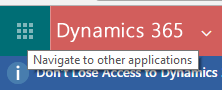
After reading this post you will be able to do following: Create a new Dynamics 365 portal. Create Dynamics 365 portal user. Add web roles to a portal user. Add and publish a page on Dynamics 365 portal. Prerequisite : You must have subscription of Dynamics 365. Create Portal Instance: Click on “Navigate to other applications” Go To à Admin à Admin Centers à Click on Dynamics 365 Click on application tab: Select Portal and click on manage.     Fill up all details as mentioned below: Select "Portal Audience" and "Portal to be Deployed". Click on "Submit" button then click accept on popup window then you will get below message: Your screen will looks like as shown below once portal get installed: You can browse portal by clicking on base portal url. Login to portal: Once you click on "Base Portal URL" then you have to register yoursel...